▶ How to check for server DRM application target and server DRM encrypted files▲ TOP
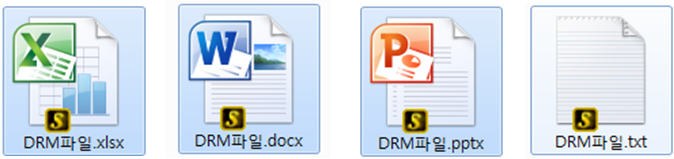
- ■ Protect the attached files, which are received from a subcontractor with a Request/Written Consent for Technical Data Provision, with the following extensions by encrypting them with the server DRM.
- - xlsx, xls, xlsm, pptx, ppt, pptm, docx, doc, docm, pdf, csv, txt, hwp, gul
- ■ A file that is encrypted with the server DRM will be shown with an ⒮ image on its icon.
-
- ■ Privilege operation policy for subcontractor technical data
- - Partner’s technical data can be received only with a CPCex Request for Technical Data Provision and used only within a specified purpose and period.
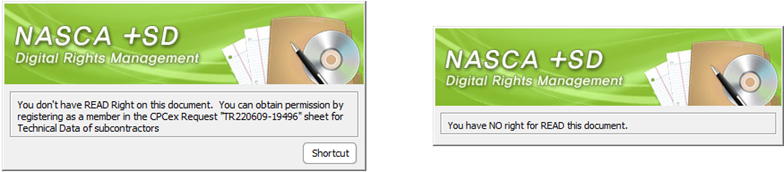
- - Only the requester / approver / consent / notifier / member of the Approval Sheet for technical data can view the partner file (technical data) attached to the request. If you are not a member, you cannot open the server DRM file and meet the NASCA Agent notification window below. (Refer to the detailed description below)
-
- - When technical data of a subcontract is transmitted externally, it is checked if it is transmitted to the same subcontractor and alerted if not.
- Pay attention to prevent leakage of subcontractor technical data by mistake.
- ※ Privileges may be subject to change according to an internal policy.
▶ How to take actions when a server DRM file can’t be opened▲ TOP
- ■ Partner’s technical data (server DRM file) from CPCex can be opened by a user who has a history of accessing CPCex at least once.
- - If the following error window shows when opening a file, access CPCex(https://cpc.sec.samsung.net) and then try again.
-
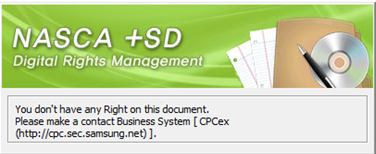
- - When opening the file without accessing CPCex, error messages may appear according to the type of document application.
- e.g., Unreadable / Inaccessible / Unknown error, etc.
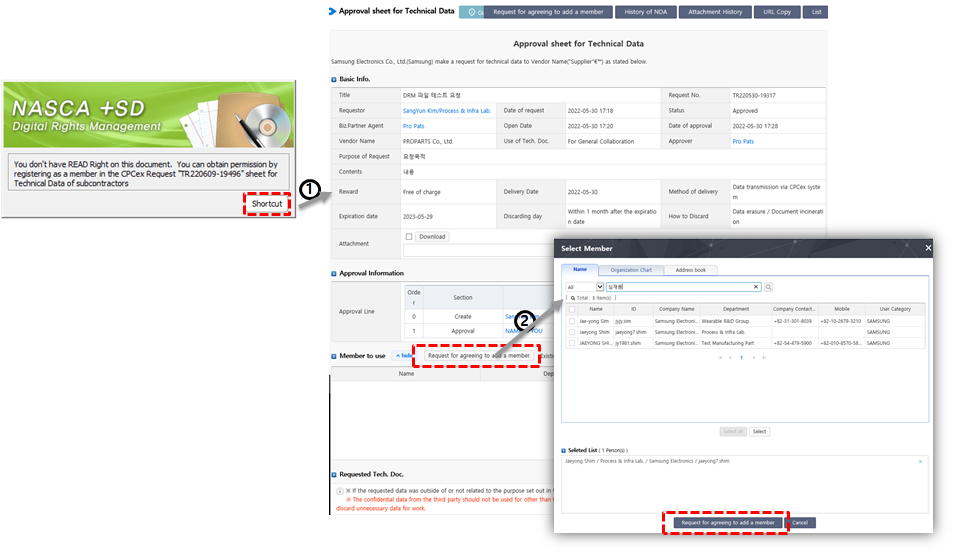
- ■ If you try to open the server DRM file (s icon) but the NASCA message that you do not have permission is displayed as shown in the figure, take the followings.
- ① Click [Shortcut] to go to the Approval sheet for Tech. Data screen where the file is attached.
- ② Click the [Request for agreeing to add a member] to add yourself and click the [Request for agreeing to add a member].
- ※ If the partner company chooses automatic approval of the member for the Approval sheet for Tech. Data, the file can be opened immediately as you are a member.
- ※ If the partner company chooses manual approval of the member for the Approval sheet for Tech. Data, the file can be opened after the partner company approves the request for additional member consent
-
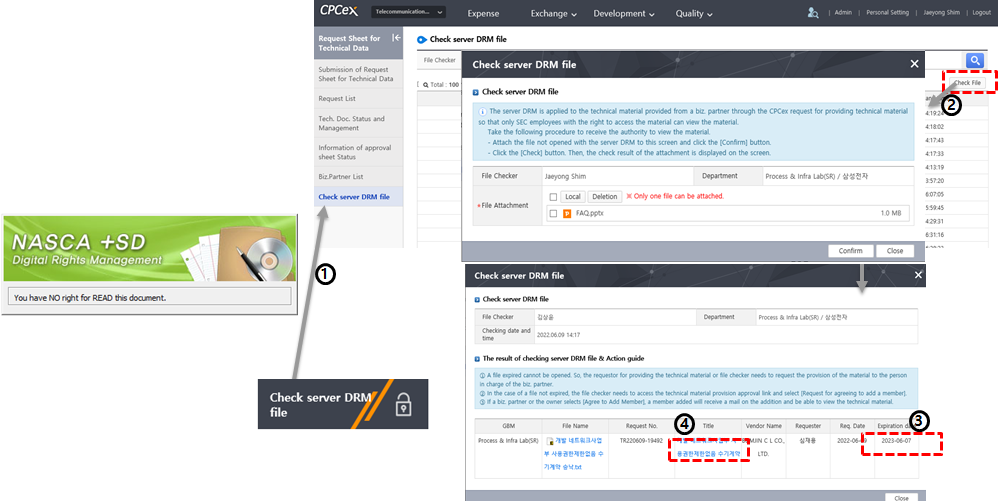
- ■ If you try to open the server DRM file (s icon) but the NASCA message that you do not have read permission is displayed as shown in the figure, take the following measures.
- ① Click the CPCex> [Check Server DRM File] banner to go to the File Check Request menu
- ② Click the [Check Files] to attach a file that is not open
- ③ Check expiration date column
- If the expiration date has already passed, ask the requester to request again the file to the partner company
- ④ If the expiration date is not expired, click the Title to see the request sheet in detail
-
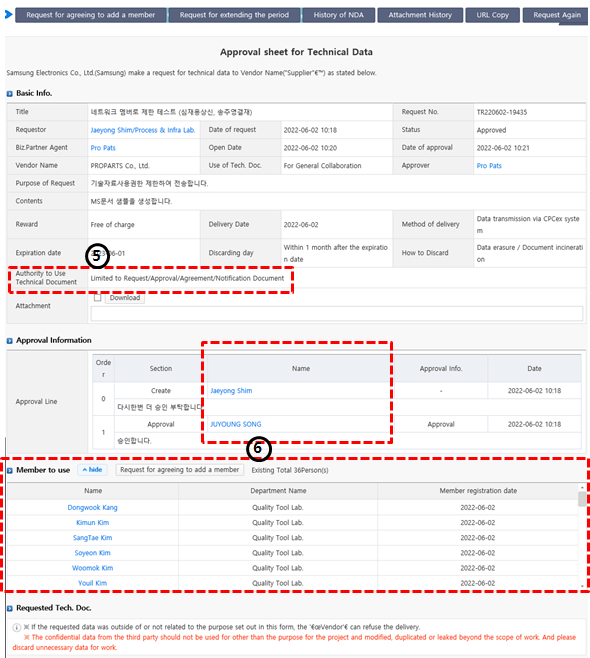
- ⑤ On the inquiry screen of the Approval sheet for Technical Data, check the value of the “Authority to Use Technical Document“ field and check if it is limited to request/approval/agreement/notification
- ⑥ If you are not included in the Approval Line or Member to use, contact the requester and ask to add you as a member.
-
▶ How to take actions when a server DRM file expires so it is not available▲ TOP
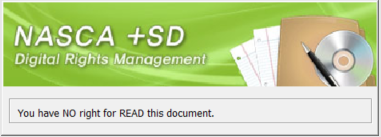
- ■ Subcontractor technical data (server DRM file) is valid only within the specified period in the request.
- If an expired file is opened, DRM client will show the following error message, which differs among applications.
-
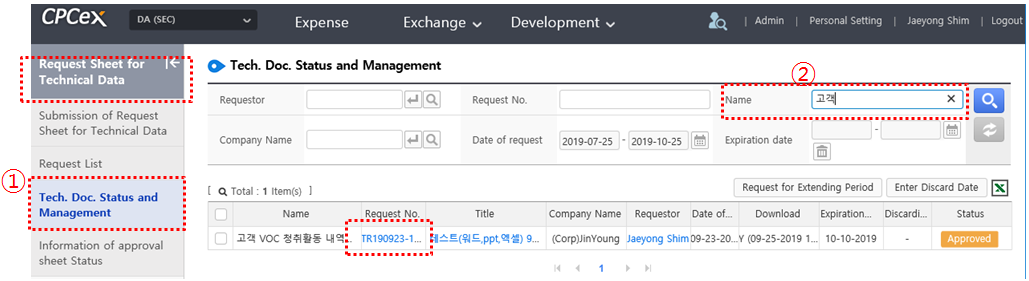
- ■ In CPCex, go to Exchange > Request Sheet for Technical Data Provision > ① Technical Doc. Status & Management, and
- ② search with “File Name” to find a request number of Request for Technical Data and the name of subcontractor of the file.
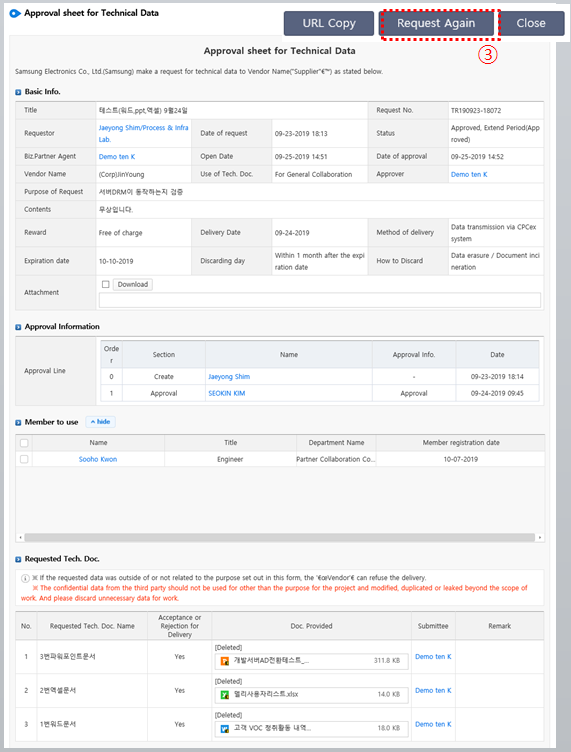
- Contact the requesting party to check if the file can be ③ [Request again] to the subcontractor.
- Or, you can directly request for the file with the Request for Technical Data Provision to the subcontractor, and download it if your request is approved.
-
-
- ★ If you can’t find the file with the menu above, please contact CPCexHelpdesk (031-200-4903, cpchelpdesk@samsung.com).
▶ How to take actions when a part of server DRM file can’t be copied → pasted to another file▲ TOP
- ■ Only requesting, approving, agreeing, notifying parties, and members of Request for Technical Data Provision for a file are allowed to “Copy + Paste” a part of subcontractor technical data (server DRM file).
- Use subcontractor technical data within the intended purpose for the request.
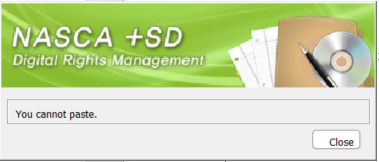
- If the following message appears when copying (Ctrl + C) and pasting (Ctrl + V) a part of subcontractor technical data, it means you don’t have the privilege.
-
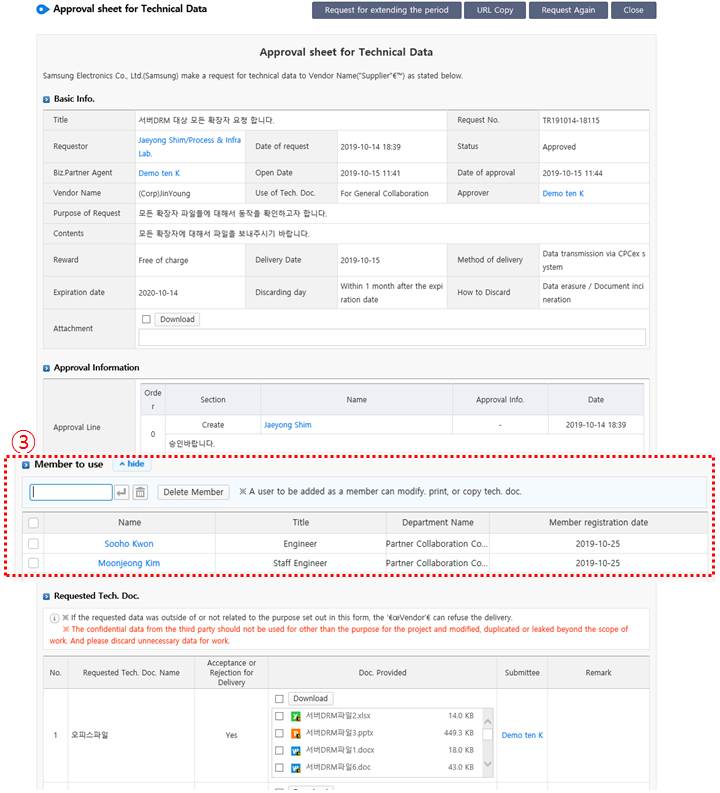
- ■ ① In CPCex, go to Exchange > Request Sheet for Technical Data Provision > Technical Doc. Status & Management, and
- ② search with “File Name” to find the request number of Request Sheet for Technical Data Provision and the name of subcontractor of the file.
- ③ Contact the requesting party to check if you can be added as a member. Once you are added as a member, you are allowed to “Copy + Paste.”
-
-
- ★ If you can’t find the file with the menu above, please contact CPCexHelpdesk (031-200-4903, cpchelpdesk@samsung.com).
▶ How to take actions when a server DRM file can’t be edited/saved▲ TOP
- ■ Only members of Request for Technical Data Provision and those who are in the same unit with the requesting party are allowed to “Edit + Save” subcontractor technical data (server DRM file).
- If you don’t have “Edit + Save” privilege, you will receive the following error message from DRM client, which differs among applications.
-
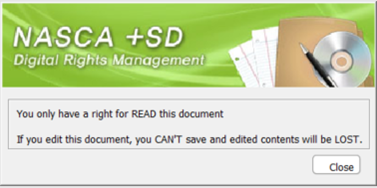

-
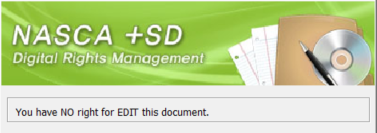

- ■ By default, you can’t be assigned with the Edit privilege for the subcontractor technical data later, but if it is essential, contact the user who transferred it to you or registered the file to the system from which you downloaded it.
▶ How to take actions when technical data (server DRM file) of a subcontractor is transmitted externally to another subcontractor by mistake▲ TOP
- ■ If a subcontractor technical data (server DRM file) is transmitted to a different subcontractor instead of its original owner, CPCex will send a warning notification of subcontractor technical data to the sending party.
- If you receive the following email, take the necessary actions to prevent unintended leakage of subcontractor data.
-
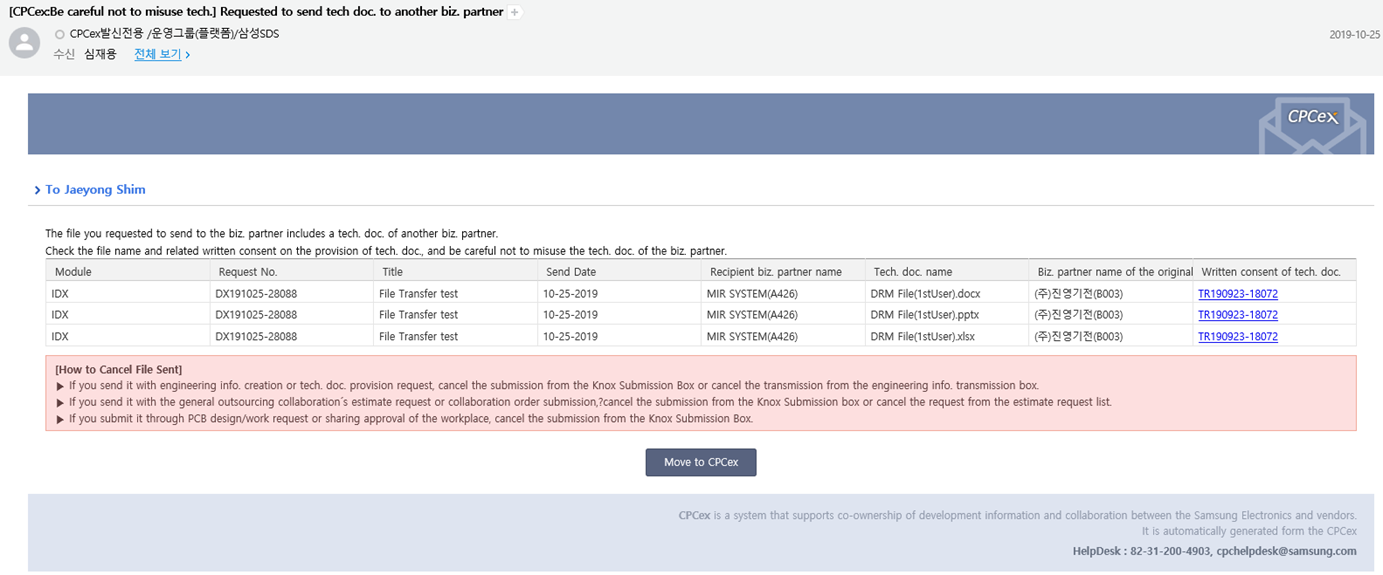
- ■ Transmission of subcontractor technical data (server DRM file) can be canceled using the functions of individual modules even after it is approved.
- - [Cancel Transmission] is available if it is transmitted through the Share Design Information module.
- - [Cancel Request] is available for the Request for Technical Data Provision module.
- - [Cancel Request] is available for the Request Estimate function of collaborative modules such as General Outsourcing Collaboration and Design Collaboration.
▶ How to check when a request is received to approve transmission of technical data (server DRM file) of a subcontractor to another subcontractor▲ TOP
- ■ If you are designated as an approving party of transmission of technical data (server DRM file) to a subcontractor and the following warning message appears in the body of Knox approval,
- you must check if it is essential to transmit an attachment to the subcontractor before approving it.
-
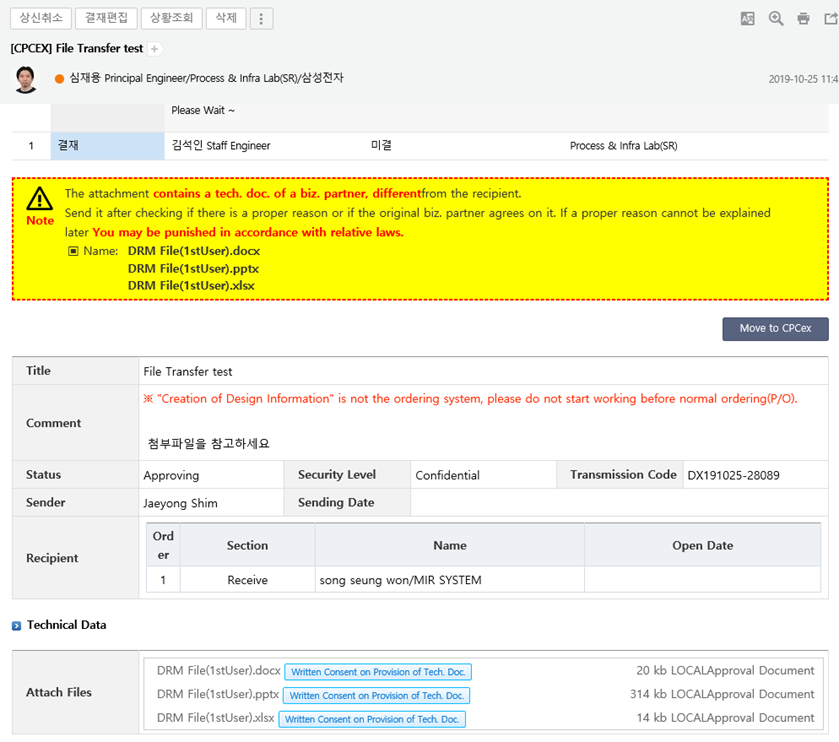
- ■ Click [Written Consent for Technical Data Provision] to the right side of the file name in the body of approval to check the Request/Written Consent for Technical Data Provision.
- Check the intention of request for technical data with the providing subcontractor to decide if it can be approved or not.
- - Check if the purpose of request in the Written Consent for Technical Data Provision and that of the current transmission match.
▶ How to take actions when a request is received to dispose of subcontractor technical data (server DRM file) because it is expired▲ TOP
- ■ Technical data from a subcontractor may be used within the expiration and purpose of the request.
- If it expires, CPCex system will remove the file from the server and send the following email requesting the disposal of the file to primary users of the Request for Technical Data Provision.
- If you receive the following notification email, remove the technical data file of email from your PC, and enter the result in CPCex.
-
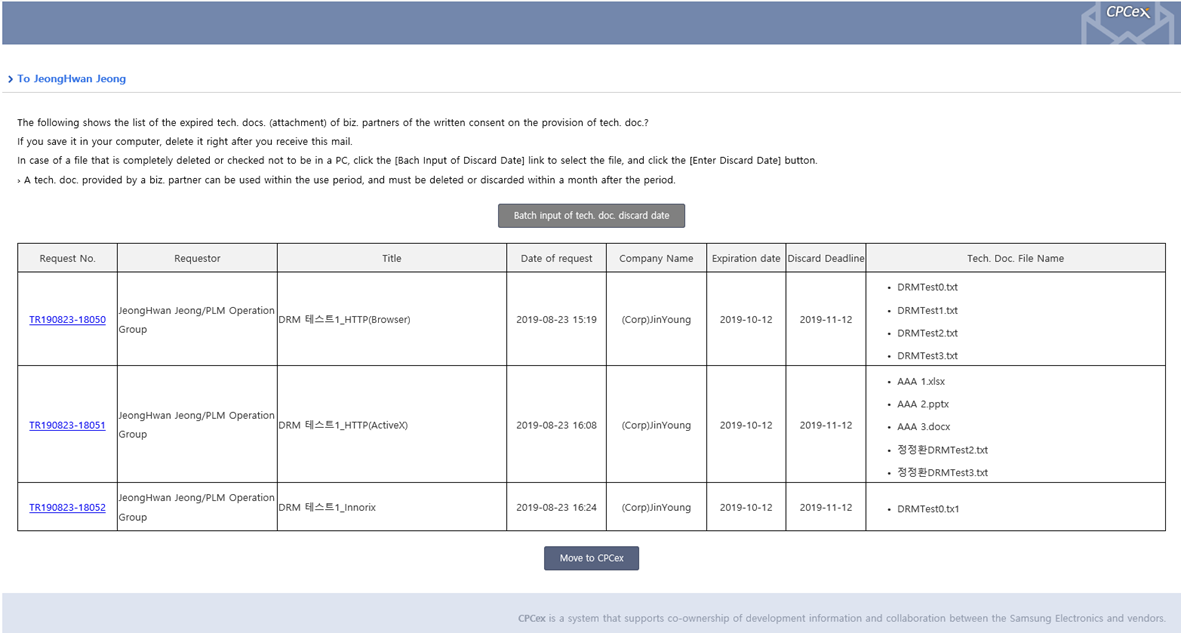
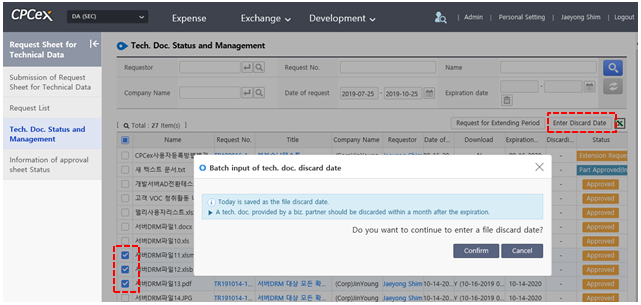
- ■ Click the [Batch Input of tech. doc. Discard date] button in the body of the notification email, and then move to Request Sheet for Technical Doc. Provision > Technical Doc. Status & Management menu in CPCex.
- Search the notified name of the file, select a checkbox, and click the [Enter Discard date] button to complete disposal.
- ■ Enter the discard date of technical doc. from a subcontractor.
- Delete the subcontractor technical doc. from your PC, press the Enter Discard Date button of document of the corresponding request number in Technical Doc. Status & Management, and record if it was disposed of in the system.
- ※ The date you click the button will be automatically entered as a disposal date.
-
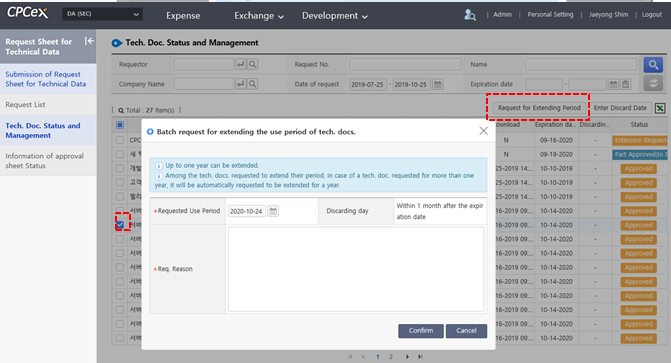
- ■ If it is required to extend the expiration of technical from a subcontractor
- Press the request for Extending Period button of the document of the corresponding request number in Technical Doc. Status & Management to request an extension of expiration to the subcontractor.
- ※ Expiration can be extended by up to three year, but any expired request can’t be extended.
-
▶ When you cannot insert partner technical data (server DRM file) into another plain file.▲ TOP
- ■ Inserting a technical data file from a supplier into another general document will make it difficult to recognize the document as a supplier data.
- Therefore, no pre-warning can be received, and employees also have difficulty managing files for obeying the deadline (legal compliance) of technical data.
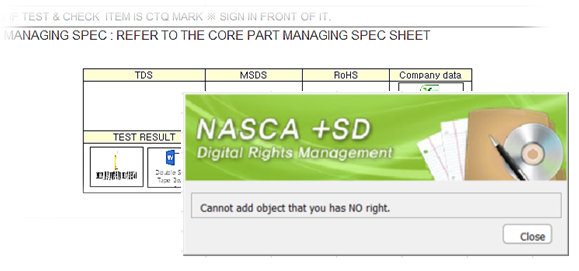
- If you encounter a disallowed message from NASCA Client as shown below, the partner's technical data will be in a separate file. Please share each one.
-